Google Messages - How to Switch from QR to Google Sign-In?
Though the option to sign in to Google Messages in Beeper using a QR Code is possible in Beeper Desktop is possible, you'll need to switch to Google Sign-In to connect Google Messages to Beeper using the Beeper Android app.
How do you switch from QR to Google Sign-In?
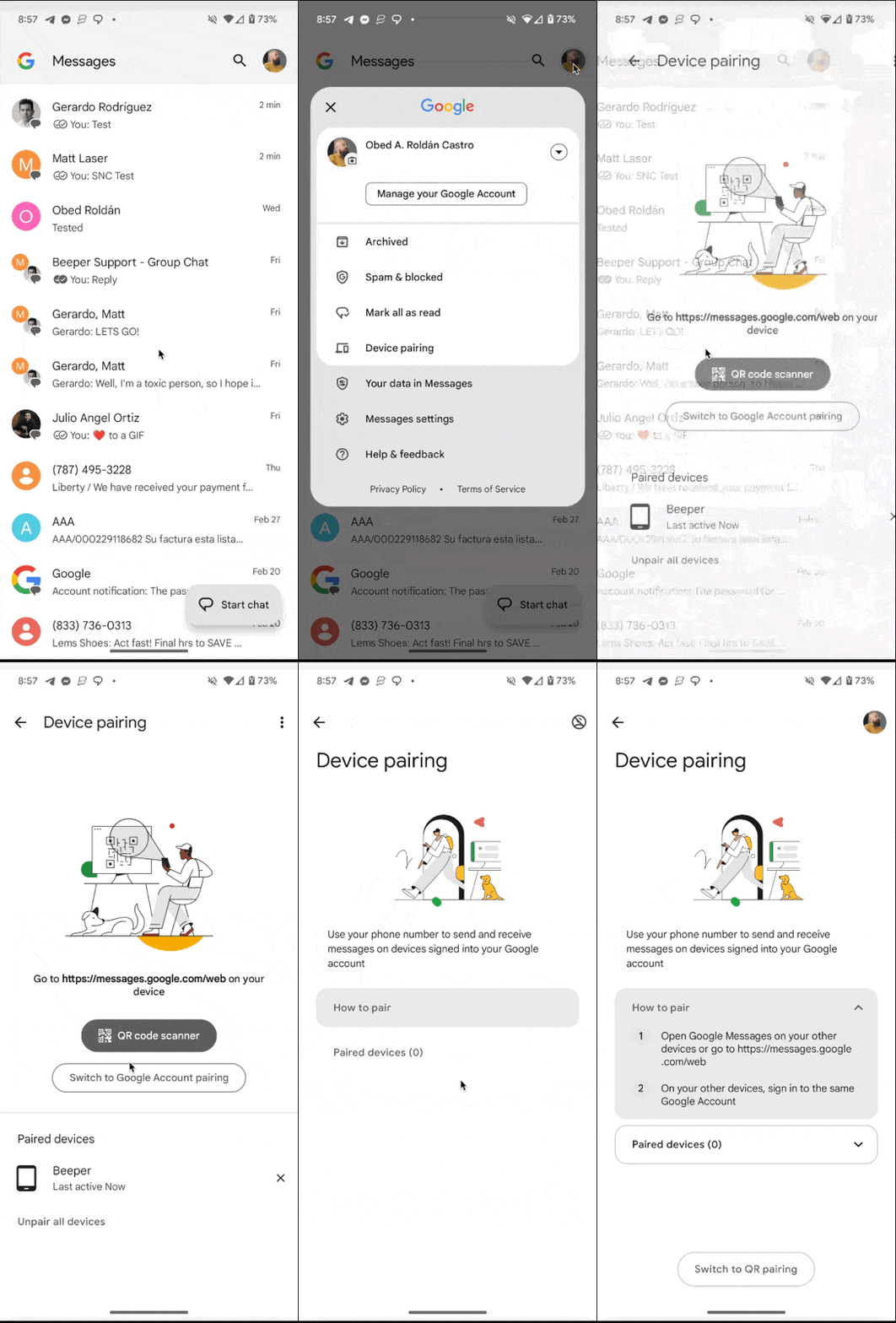
Here are the steps to switch your Google Messages “Device pairing” from QR Code to Google Sign-in:
- Open your Google Messages native app
- Tap over your Google account Avatar on the top right corner
- Select “Device pairing”
- You will be given the option to use the QR code scanner, switch to Google Account pairing, and use your Paired devices.
- Select “Switch to Google Account pairing”
- Now, you can start to link your Google Messages account and Beeper, either on the Beeper Android app or Beeper Cloud Desktop.
Google account Sign-In Passkey
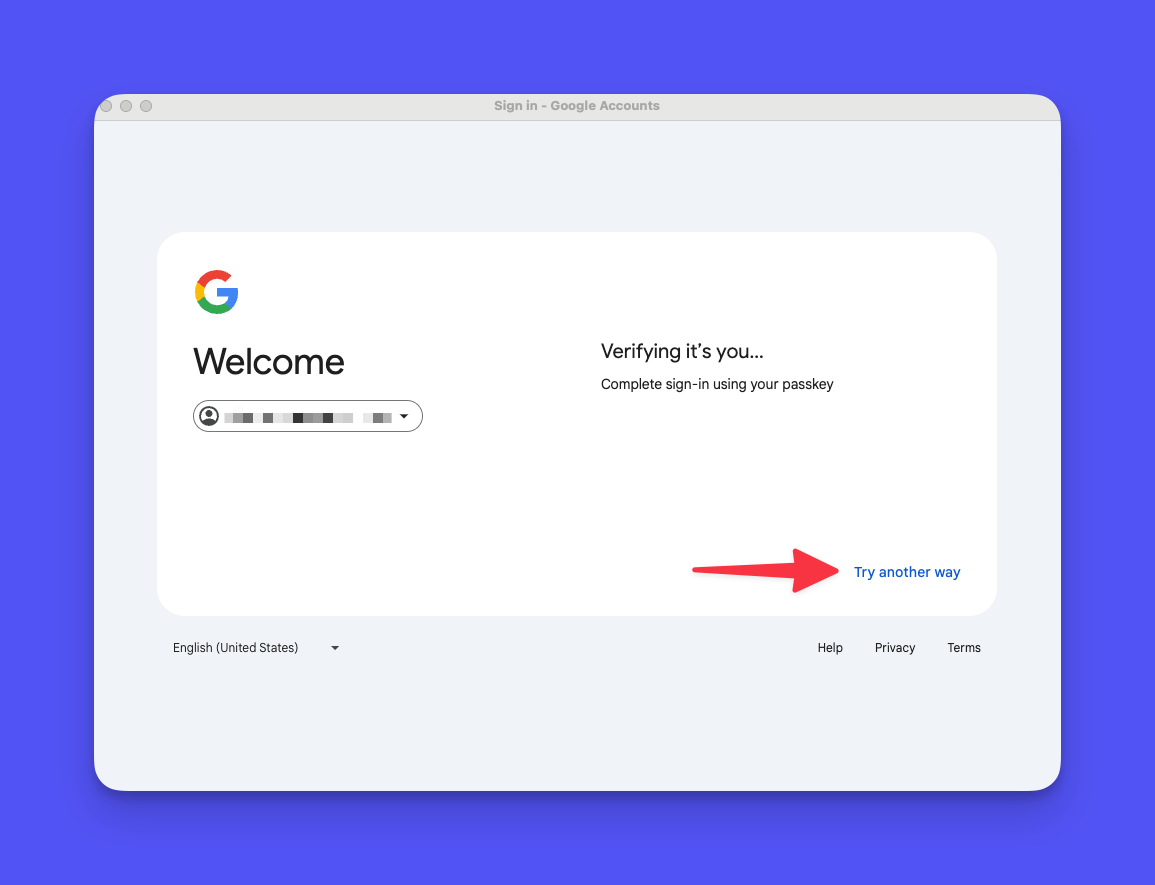
If you use your MacBook's Touch ID as your Google account passkey, you must press “Try another way” and use your password, followed by Two-step Verification if you're connecting using Beeper Desktop.